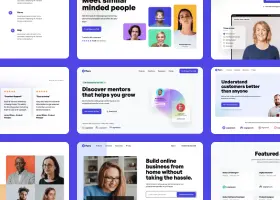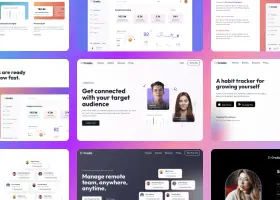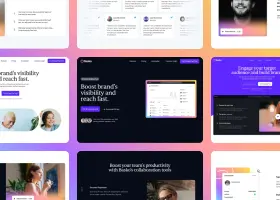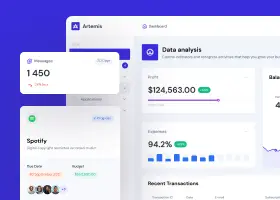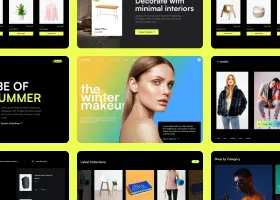
Generate website designs with several AI models at once, right from Claude, Codex, Cursor, VS Code or any other app that supports the Model Context Protocol.
The Shuffle MCP server brings the Multi-AI Designer to your AI assistant. Describe the website you need, or give the URL of a website to redesign, and Shuffle generates designs with up to four AI models in parallel, so you can compare them side by side.
Every design is a regular Shuffle project. Open it in the Shuffle Editor to change content and styles visually, then export the code or publish it.
MCP (Model Context Protocol) is an open standard for connecting AI apps to external tools. Once you connect Shuffle, your assistant can create designs, check their progress, and give you links to preview and edit them.
See it in action on the web. Now bring the same creative power to your favorite tools with MCP.
Use this URL in every app:
https://shuffle.dev/mcpThe server uses the Streamable HTTP transport. You don't need an API key; you sign in with your Shuffle account instead.
The first time your app uses the server, it opens a Shuffle page in your browser. Log in if needed, review the access request, and click Allow. You're then sent back to your app.
 Important: the access request shows where you'll be sent back to, for example
"claude.ai" or "an app running on this computer". The app name on that page is
provided by the app itself, so only click Allow if you started the connection.
Important: the access request shows where you'll be sent back to, for example
"claude.ai" or "an app running on this computer". The app name on that page is
provided by the app itself, so only click Allow if you started the connection.
To disconnect, remove the Shuffle server from your app.
Run this command in your terminal:
claude mcp add --transport http shuffle https://shuffle.dev/mcp
Then start Claude Code, run /mcp, select
shuffle and choose to authenticate. Your browser opens the Shuffle
sign-in page.
With the Codex CLI installed, run these commands in your terminal:
codex mcp add shuffle --url https://shuffle.dev/mcp
codex mcp login shuffle
Follow the browser sign-in flow, log in to your Shuffle account and click Allow. The Codex CLI and IDE extension share the same MCP configuration.
Alternatively, add this to ~/.codex/config.toml,
then run codex mcp login shuffle:
[mcp_servers.shuffle]
url = "https://shuffle.dev/mcp"
Start a new Codex session and run /mcp to check that
Shuffle is connected. Then try: "Use Shuffle to design a landing page for my app."
See the official Codex MCP documentation for more configuration options.
Add the server to ~/.cursor/mcp.json (all projects)
or .cursor/mcp.json in your project:
{
  "mcpServers": {
    "shuffle": {
      "url": "https://shuffle.dev/mcp"
    }
  }
}
Open Cursor Settings → MCP, find shuffle and click Login or Connect to sign in.
Add the server to .vscode/mcp.json in your project,
or run MCP: Add Server from the Command Palette and choose HTTP:
{
  "servers": {
    "shuffle": {
      "type": "http",
      "url": "https://shuffle.dev/mcp"
    }
  }
}
Start the server from the file or the MCP view, then follow the sign-in prompt. Use Copilot Chat in agent mode to work with the Shuffle tools.
https://shuffle.dev/mcp
Any app that supports remote MCP servers with OAuth can connect. Add a server with
the URL https://shuffle.dev/mcp and the HTTP (Streamable HTTP)
transport. Sign-in details are discovered automatically.
If your app only supports local (stdio) servers, check whether it can connect to
remote servers through a bridge such as mcp-remote.
Your assistant decides on its own which tools to use. A request like "design me a landing page" could also be answered without Shuffle, for example by writing the code directly. To make sure Shuffle is used:
Start with "Use Shuffle to…" or add "with Shuffle". This works in every app.
Shuffle provides two commands, design and redesign,
that always use Shuffle. Apps show them under names based on the name you gave the
server (shuffle in the setup steps above):
/mcp__shuffle__design and /mcp__shuffle__redesign/mcp.shuffle.design and /mcp.shuffle.redesignThe design command asks for a description of the website. The redesign command asks for the website URL and, optionally, what to change. Both accept an optional list of models to compare.
In Claude, make sure the Shuffle connector is turned on in the chat's tools menu.
Ask your assistant in plain language. For example:
The more you describe (business, audience, sections, style, colors, tone), the better the results.
Every design moves through these statuses:
queued: waiting to startrunning: the model is generating the designsucceeded: ready, with preview and editor linksfailed: something went wrong; the error explains whyEach finished design has an edit link that opens it in the Shuffle Editor and a preview link, and you can download its code. Designs are also saved as projects in your Shuffle account.
You can download the HTML code of any finished design as a ZIP file. Ask your assistant, for example "Download the Claude design" or "Give me the code of the Gemini version".
The download link works without signing in and expires after 15 minutes. If it has expired, ask your assistant for a new one.
Coding assistants that can run commands, such as Claude Code or Cursor, can download and unpack the design directly into your project. Ask for example: "Use Shuffle to design a landing page for my app, then download the Claude design into the ./site folder." Behind the scenes, the assistant runs a command like:
curl -L -o shuffle-design.zip "<download link>" && unzip shuffle-design.zip -d site
The ZIP contains a ready-to-use static website (public/index.html
with its CSS, JavaScript and assets) and the source files in src/.
Your assistant picks these tools automatically. This reference is useful if you build your own agent or want to know what happens behind the scenes.
Starts a design session with several AI models. Returns immediately with a session id.
prompt (required): description of the website, 10–4000 characters. For redesigns, what to improve.mode: design (default) for a new website, or redesign to redesign the website at url.url: public http(s) URL of the website to redesign. Required in redesign mode.models: optional list of up to 4 model ids (see list_models). Defaults to the standard set of models.Returns the status of a session and, for finished designs, the preview, editor and screenshot links.
hash (required): the session id returned by create_design.wait_seconds: wait up to 25 seconds for progress before returning. The call returns as soon as a design changes status or all designs are finished.Returns a download link for the HTML code (ZIP) of a finished design. The link works without signing in and expires after 15 minutes.
hash (required): the session id returned by create_design.model: model id of the design to download. Optional when only one design in the session is finished.Lists the design sessions you created through the MCP server, newest first, 10 per page.
page: page number, starting at 1.Lists the AI models available in the Multi-AI Designer, with their ids.
Example result of get_design (shortened):
{
  "hash": "m-2A11cuK-hZx2",
  "mode": "design",
  "finished": true,
  "designs": [
    {
      "model": "claude-opus-5-5",
      "model_label": "Claude Opus 5.5",
      "status": "succeeded",
      "preview_url": "https://shuffle.dev/preview/…",
      "edit_url": "https://shuffle.dev/editor?project=…",
      "screenshot_url": "https://static.shuffle.dev/…"
    }
  ]
}
Check that the URL is exactly https://shuffle.dev/mcp and the
transport is HTTP (Streamable HTTP), not SSE or stdio. Remove the server from your
app, add it again, and sign in.
Your app uses a sign-in callback that Shuffle doesn't recognize yet. Apps that run on your computer and the apps listed above are supported. Contact us with the name of your app and we'll add it.
Generation usually takes a few minutes per model. If a design doesn't finish within 30 minutes, it's marked as failed. Ask your assistant to try again.
Your account's AI usage allowance is used up. It resets automatically; you can check your usage in your Shuffle dashboard.

Build websites faster with an AI Visual Editor



© 2026 Shuffle. All rights reserved.
See what you're getting before you commit.
Switch the editor to Grid and every page of your project appears side by side on one canvas. Arrange them freely, zoom in and out, and add as many new pages as you need in a few clicks.
Describe what you need in one chat and the Agent does the rest: it adds new sections, edits copy and styles, moves blocks around or removes them across your whole page. No modes, no switching, just tell it what to change.
Not quite there yet? Ask for tweaks like missing assets, your logo or other details, and regenerate the design without starting from scratch.