











From design to development: continue your Shuffle project in your favorite coding agent

Benedykt Michalski
Inspirational Writer


You’ve found a design you like. You’ve adjusted the colors, refined the layout, and made it your own. Now it’s time to make it work inside your application.
With Shuffle’s new AI Agent feature, you can continue that work in Claude Code, Codex, or another coding agent. Bring your project and its assets with you, then ask your agent to help with the next step: integrating it into your stack, connecting real data, or building out more pages.
The work you’ve already done becomes the starting point.
Explore a few ideas, then build on the best one
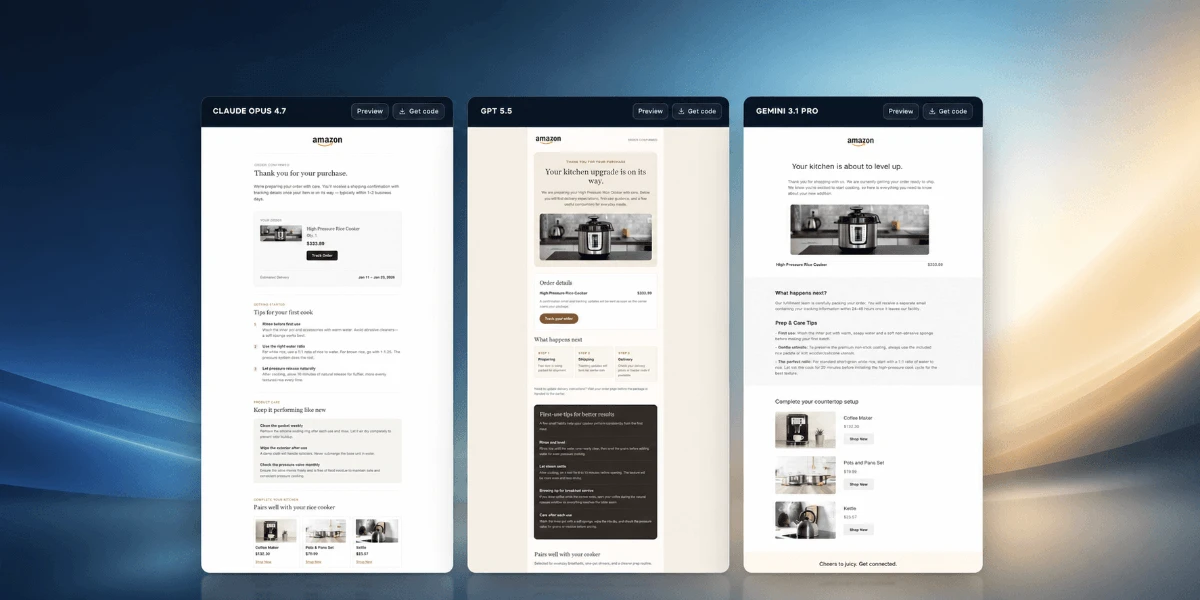
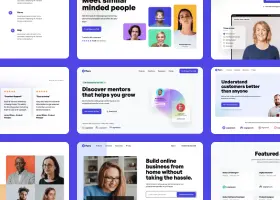
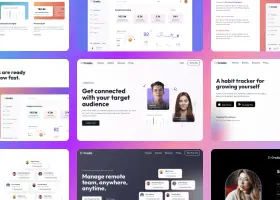
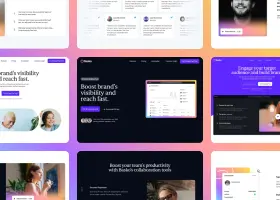
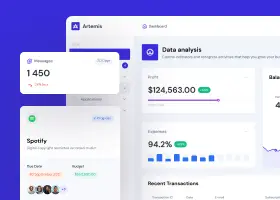
Choosing a design is easier when you have options to compare. Start in Shuffle’s Multi-AI Designer, generate a few designs, and pick the one that fits your project best. You can easily redesign your website.
If it needs a few changes, open it in the visual editor. Adjust the typography, change the spacing, swap images, or rearrange sections until you’re happy with the result.
Then continue in your coding agent. You’ve already made the key design decisions, so you can focus your next prompts on implementation.
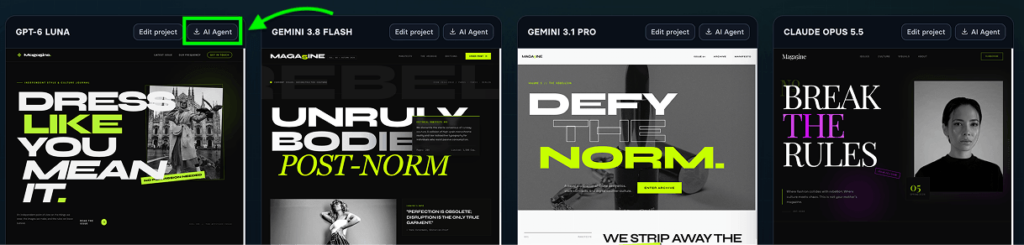
For example, after sharing the project with your agent, you could ask:
> Integrate this design into my existing app. Use the project’s framework and component conventions, preserve the layout and styling, and connect the pricing section to our existing plan data.That gives your agent a concrete design to work from and a clear next task.
Pick up where you left off
Moving from a design tool to your development environment often means explaining your decisions all over again. Which layout did you choose? What should the buttons look like? Which assets belong on the page?
Shuffle’s AI Agent feature helps you carry that work forward. Your agent can download the project and its assets, giving it the actual starting point for the next stage of development.
You can use this with a new design from Multi-AI Designer or a project you’ve been building in the Shuffle Editor. Whenever you’re ready to move into code, the option is there.
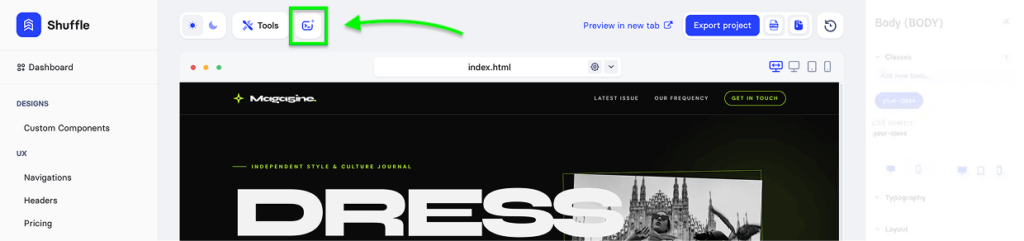
Choose what you want to do next
Open AI Agent in Multi-AI Designer, or click the AI Agent icon in the Shuffle Editor. From there, you have three options:
• Download: Copy a prompt that lets your agent download your project and its assets, then add instructions for what to build next.
• WordPress: Use the dedicated prompt to ask your agent to convert the project into a WordPress theme.
• DESIGN.md: Generate a design specification your agent can follow when creating matching pages or applying the same style to an existing project.
Copy the prompt, adjust it if needed, and paste it into your favorite coding agent. Making projects accessible to agents requires an active Shuffle subscription.
Keep the design work moving
You might need a landing page integrated into an existing app, a WordPress theme for a client, or several new screens that match a design you’ve already chosen. Shuffle gives you a place to explore and refine the visual direction, then carry it into the development workflow you already use.
Create a few designs. Pick your favorite. Customize it visually. Then open AI Agent and keep building.