

















How to Write the Best AI Prompt for Webpage Generation?

Benedykt Michalski
Inspirational Writer


The easiest way to create high-quality webpages with AI is to use Shuffle’s Prompt Builder. Instead of guessing what to type, this tool guides you through a visual step-by-step process to ensure your website matches your brand and functional needs perfectly.
Why Structured Prompts Matter
AI is powerful, but vague instructions lead to generic designs. A professional prompt needs to cover layout, typography, color theory, and section hierarchy.
With Shuffle Prompt Builder, you don’t need to be a “prompt engineer.” The tool captures your visual preferences and technical requirements, automatically generating a precise instruction set in the Prompt Improvement field.
Step 1: Set the Foundation (Style)
Start by defining the core identity of your project in the Style tab:
- Website goal: Select what you want to achieve (e.g., selling a product, lead generation).
- Target Audience: Define who the page is for to ensure the AI uses the right tone.
- Visual Style: Choose the overall aesthetic (e.g., modern, minimalist, or professional) from the dropdown menu.
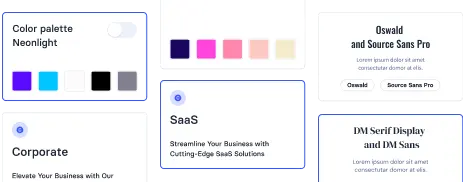
Step 2: Define Typography
Typography sets the mood of your site. In the Typography step, you can:
- Select a pre-defined Typography Style.
- Specify exact Google Font names for both your Headings and Body text to maintain brand consistency.
Step 3: Select Your Color Palette
Colors drive user emotion and brand recognition. In the Colors section:
- Color Scheme: Choose a high-level color strategy.
- Primary Color: Pick your main brand color from a professional palette (ranging from neutrals like Slate and Zinc to vibrant tones like Indigo, Teal, or Rose).
Step 4: Configure Your Sections
This is where you build the actual structure of your page. In the Sections tab, you can add and customize each part of your site:
- Function: Clearly state what the section is for (e.g., Hero section, Features, Pricing).
- Pick a layout: Choose how content is organized—use Auto for AI optimization or select specific column structures (e.g., 50/50 split, three-column grid).
- Add a video or image: Select the visual style for your assets to guide the AI in choosing the right placeholder imagery.
Step 5: Refine with “Prompt Improvement”
The Prompt Improvement box at the bottom of the builder is your secret weapon. If you have specific requirements not covered by the UI:
- Type your custom instruction into the text area.
- Click “Add to prompt”.
- The builder will intelligently merge your manual notes with the visual selections you’ve made, creating a comprehensive, “super-prompt.”
Step 6: Review and Iterate
If the generated result needs adjustment, don’t start over. Use the Prev button to go back to any step—whether it’s changing the primary color or swapping a font—and update your prompt instantly.
Bottom Line
Creating AI-generated webpages is simple when your instructions are clear and structured. Shuffle Prompt Builder turns a complex technical task into a visual workflow, ensuring your website looks great and functions perfectly without the trial-and-error.