
Confirm AI Code Replacement
Please review the code below and decide if you would like to replace the current component code with this version.

Select any element on the canvas to activate its settings menu.
Preview in new tab, AI tools and the Browser view use this page. Click another page on the canvas to switch.
Lorem ipsum dolor sit amet, consectetur adipiscing elit. Sed do eiusmod tempor incididunt labore et dolore magna. Aliqua ut enim ad minim veniam.
By default, custom components are saved globally (it is the same object).
If you want to create a new object with its own content, please use save as new component.
By default, only edited code is overwritten.
If you want to create your own component for further reuse, please use save as component.
Describe it in your own words. The AI Agent can edit, add, remove or reorder sections, and you’ll see the result in the preview.
AI is sketching, styling, and stitching everything together.
Please review the code below and decide if you would like to replace the current component code with this version.
...Enter your own API key to bypass Shuffle's usage limits.
The scan is in progress.
Create your account to keep building with AI and turn this draft into a finished website.
The AI will include it in the generated component (upload logo, icons, videos, or other visual elements).
Clearly tell the AI where to insert the asset and how to position any related content (for example, "Use it as a logo").
Your uploaded file will be added directly to the generated component. After uploading, you can guide the AI on where exactly to use it, e.g. as a logo or as a section image.
Select data name, then edit data. Remember to save changes.
There is a newer version or session on the server. Please reload the editor to resolve.
Hint: In 9 cases out of 10 it is caused by opening the same project in multiple browser windows.

Try to use Shuffle Editor on higher resolution or change your device.
You can find previously uploaded files under the Project Files tab.


Use the search input
to browse the Unsplash library.
Once saved, you can return to it anytime in the Project Files tab.
Image generation typically completes within 30 seconds.
Select or upload a new SVG icon.




No icons found!

Git integration allows you to configure auto deployments with platforms like Vercel, Netlify, Firebase, and many more.
Create Account
SSH integration allows you to configure auto deployments to any hosting provider.
Create Account
Hosting integration allows you to deploy your project with a single click.
Create AccountTransform your project into a production-ready WordPress theme with Shuffle. Ready to install on your site.
Transform your project into a Shopify Online Store 2.0 theme with products, collections, cart, and customer accounts. Ready to upload to your store.




Use the left column to select a category of components. Drag them into the canvas to add them to your project.
After dropping the component on the canvas, you can turn on Drag Mode, move elements around, and add new elements.
Create as many pages as your website needs. Manage them from the dropdown menu.
You can customize the chosen framework here. It doesn't matter if the framework uses Sass, tailwind.config.js, or theme.js. We will show you the same understandable visual interface.
The right menu allows you to modify an element's CSS classes and create new ones when needed.
Shuffle allows you to download the project in HTML, JSX or TSX, and PUG formats. Use icons near the Export button to switch formats.
If you don't want to download the project on your disk, export it to the Github repository. This option allows you to configure auto-deployment with platforms like Vercel, Netlify, etc.
Your agent will download the project and all its assets.
Your agent will convert this project into a WordPress theme.
Create a design specification that coding agents can follow to build new pages in this style or apply the same look to an existing project.
Takes up to 30 seconds.This may take up to 30 seconds.
DESIGN.md
Connect the Shuffle MCP server to Claude Code and generate website designs with up to four AI models at once, right from your terminal. Every design is a Shuffle project you can edit.
Run this command in your terminal:
claude mcp add --transport http shuffle https://shuffle.dev/mcp
Start Claude Code, run /mcp, select shuffle and choose to authenticate. Your browser opens Shuffle: log in and click Allow.
Start your message with “Use Shuffle to…” or use the /mcp__shuffle__design and /mcp__shuffle__redesign commands, so Claude Code uses Shuffle instead of writing the code itself. For example:
The Shuffle MCP server works with any app that supports remote MCP servers. Use this server URL everywhere:
https://shuffle.dev/mcp
Add the server to ~/.cursor/mcp.json (all projects) or .cursor/mcp.json in your project. Then open Cursor Settings → MCP, find shuffle and click Login or Connect to sign in.
{
  "mcpServers": {
    "shuffle": {
      "url": "https://shuffle.dev/mcp"
    }
  }
}
Add the server to .vscode/mcp.json in your project, or run MCP: Add Server from the Command Palette and choose HTTP. Start the server, follow the sign-in prompt and use Copilot Chat in agent mode.
{
  "servers": {
    "shuffle": {
      "type": "http",
      "url": "https://shuffle.dev/mcp"
    }
  }
}
Open Settings → Connectors and choose Add custom connector. Name it Shuffle, paste the server URL, click Connect and sign in. In a chat, make sure the Shuffle connector is enabled in the tools menu.
https://shuffle.dev/mcp
Any app that supports remote MCP servers with OAuth can connect. Add a server with this URL and the HTTP (Streamable HTTP) transport; sign-in is discovered automatically. Apps that only support local (stdio) servers can connect through a bridge such as mcp-remote.
https://shuffle.dev/mcp
Designs use your Shuffle AI usage allowance. Read the MCP server documentation for all tools, limits and troubleshooting.
Connect the Shuffle MCP server to Codex and generate website designs with up to four AI models at once, right from your terminal. Every design is a Shuffle project you can edit.
With the Codex CLI installed, run these commands in your terminal:
codex mcp add shuffle --url https://shuffle.dev/mcp
codex mcp login shuffle
Or add this to ~/.codex/config.toml, then run codex mcp login shuffle:
[mcp_servers.shuffle]
url = "https://shuffle.dev/mcp"
codex mcp login shuffle opens Shuffle in your browser: log in and click Allow. Start a new Codex session and run /mcp to check that Shuffle is connected. The Codex CLI and IDE extension share the same configuration.
Start your message with “Use Shuffle to…” so Codex uses Shuffle instead of writing the code itself. For example:
The Shuffle MCP server works with any app that supports remote MCP servers. Use this server URL everywhere:
https://shuffle.dev/mcp
Add the server to ~/.cursor/mcp.json (all projects) or .cursor/mcp.json in your project. Then open Cursor Settings → MCP, find shuffle and click Login or Connect to sign in.
{
  "mcpServers": {
    "shuffle": {
      "url": "https://shuffle.dev/mcp"
    }
  }
}
Add the server to .vscode/mcp.json in your project, or run MCP: Add Server from the Command Palette and choose HTTP. Start the server, follow the sign-in prompt and use Copilot Chat in agent mode.
{
  "servers": {
    "shuffle": {
      "type": "http",
      "url": "https://shuffle.dev/mcp"
    }
  }
}
Open Settings → Connectors and choose Add custom connector. Name it Shuffle, paste the server URL, click Connect and sign in. In a chat, make sure the Shuffle connector is enabled in the tools menu.
https://shuffle.dev/mcp
Any app that supports remote MCP servers with OAuth can connect. Add a server with this URL and the HTTP (Streamable HTTP) transport; sign-in is discovered automatically. Apps that only support local (stdio) servers can connect through a bridge such as mcp-remote.
https://shuffle.dev/mcp
Designs use your Shuffle AI usage allowance. Read the MCP server documentation for all tools, limits and troubleshooting.
Generate and compare designs from multiple AI models.
Speed up your workflow with these keyboard shortcuts.
Your project starts with a home page. Add the rest from either view, both show the same pages.
One page at a time
Best for finishing pages in order, like home, about, then contact.
Your whole site at a glance
Best for spotting what's missing and keeping pages consistent.
Switch views any time with BrowserGrid
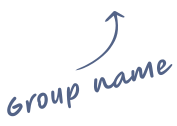
If you want to reuse the same set of classes, group them together so you can apply them all at once with a single click.
Below is an example illustrating how to use groups.
What would you like to change?
Describe your idea, and AI will put together a starting layout from this library's components.
Your prompt was replaced with the AI version.
You'll be able to edit them later. This part won’t take long.
You'll be able to edit them later. This part won’t take long.
Watch the layout evolve while AI streams the code.
The first sections usually show up within 20–30 seconds.
The demo includes 2 test builds to showcase how Shuffle works.
Create an account
to increase limits.
It includes a single page to showcase what's possible. Preview it, customize it, or keep building with AI. Upgrade your account to unlock the full experience.
Multi-AI Designer by Shuffle runs your prompt through Claude, GPT and Gemini and lays the results out side by side. It opens in a new tab and starts instantly.
It takes one click: they start generating from your prompt in a new tab, while you keep working here. Your project stays exactly as it is.
Set your website's structure and styling with a clear, precise prompt.
To add your logo and other brand assets, go to the Sections tab and upload them there.
It takes a few seconds. Your prompt is saved, and generation will start right after you sign in.
Use your own files or let AI create something new for your design.
Describe the image you need, or upload one and tell the AI what to change.
Your image will appear here
Start with an image, set your frames, and create a video that plays on repeat.
First frame
Last frame
Match the last frame to the first for a seamless loop.
Your looped video will appear here
Preview your video before adding it to your prompt.
Where will your text go?
Drag and resize the box over that spot. We'll keep it calm, so your text stays easy to read.
Generating your video…
This usually takes 1–3 minutes. Keep this window open.
Your video plays on repeat, just like on your website.
Turn any image into a smooth background video that plays on repeat. Upgrade to create videos for your sections.
The AI will include it in the generated projects (upload logo, icons, videos, or other visual elements).
Clearly tell the AI where to insert the asset and how to position any related content (for example, "Use it as a logo").

Behind the Barro Studio design
One prompt, three AI videos and scroll effects described in plain words. The prompt says how the whole page moves, then gives every section its own effect. Read it below and open the video tags to see how each video was made.
A great prompt describes
The prompt
Landing page for Barro Studio, a small handmade stoneware ceramics studio in an old riverside warehouse in Porto, Portugal. Six potters throw, fire and glaze every piece by hand: mugs, bowls, plates and vases made for everyday use, sold online and shipped worldwide.
Style: warm, tactile, artisanal and cinematic. Light theme. Colors: warm clay-white #F4EFE8 background, deep espresso #1E1A17 text, terracotta #C4572E for buttons and accents, glaze blue #3F5E73 for small details. Headings in an elegant serif (e.g. Instrument Serif), body in a clean sans-serif (e.g. DM Sans). Generous spacing, very large headlines, few words. Logo: "Barro" in the serif font with a small round bowl icon, and the word "STUDIO" in small spaced-out capitals next to it.
Scroll effects: the page should feel smooth and alive as you scroll, but calm, never flashy. Use smooth scrolling and the effects described in each section below. Headlines and text blocks should fade in and slide up slightly when they enter the screen. All animations should be smooth and tied to scroll position where stated. If the user prefers reduced motion, turn the effects off and show everything statically.
Sections:
1. Navigation: logo on the left; links: Process, Collection, Studio; button "Shop the collection". Scroll effect: the navigation is transparent over the hero and becomes a solid clay-white bar with a thin border after you scroll down.
2. Hero: full-screen section with a video background.
How video 1 was made (Hero)
1Click Add media under the prompt, then Generate video.
2
In Generate with AI, describe the starting image (16:9, High 2K). Say where the subject goes and keep an empty, calm area for your text:
Close view of wet terracotta-colored clay spinning on a potter's wheel, two hands gently shaping it into a rising bowl, water glistening on the clay surface. Soft warm daylight comes from a large old factory window on the side, fine dust floating in the light. Place the wheel and hands in the right third of the image; keep the left half calm and simple: soft, out-of-focus warm brick wall. Photorealistic, cinematic, warm terracotta and cream tones with soft shadows, no faces, no text.
3Click Continue and drag the box over the left half, on the soft brick wall. The video stays calm there, so the text is easy to read.
4Click Generate video, then Add to prompt, and move the added text here.
What moves: the spinning clay, hands shaping the bowl, dust floating in the light.
Headline: "Made by hand. Made to be used." Subheadline: "Stoneware thrown, fired and glazed in our Porto studio, one piece at a time." Buttons: "Shop the collection" (primary) and "See how it's made" (secondary, outline). Small line below: "Free shipping on orders over €80".
Scroll effect: as you scroll down, the hero video shrinks from full-screen into a large rounded frame with margins around it, while the headline moves up and fades out.
3. Manifesto: no video, plain clay-white background. One very large paragraph centered on the page: "We believe a mug should feel good in your hands every morning. So we make fewer things, slowly, from local clay, and we make them to last for years."
Scroll effect: the paragraph reveals word by word as you scroll; words start light and faded and turn fully dark espresso one after another as the section moves through the screen.
4. Process: full-screen section with a video background, pinned while you scroll through it.
How video 2 was made (Process)
1Click Add media under the prompt, then Generate video.
2
In Generate with AI, describe the starting image (16:9, High 2K). Say where the subject goes and keep an empty, calm area for your text:
Interior of a pottery kiln seen through its open door, rows of stoneware bowls and vases on shelves glowing bright orange from the heat, soft waves of heat shimmer in the air. The edges of the old brick kiln are in deep shadow. Place the kiln opening and glowing pottery in the left third of the image; keep the right half dark, calm and simple: plain shadowed brick wall. Photorealistic, cinematic, deep brown and black with glowing orange highlights, no people, no text.
3Click Continue and drag the box over the right half, on the plain brick wall. The video stays calm there, so the text is easy to read.
4Click Generate video, then Add to prompt, and move the added text here.
What moves: glowing pottery, shimmering heat in the air.
Eyebrow: "The process". Headline: "Three steps. No shortcuts." Three steps, each with a large number and a small line icon: "01 Shape - every piece is thrown on the wheel from local Portuguese clay", "02 Fire - two firings, the last one at 1 280°C, for stoneware that lasts", "03 Glaze - mixed by hand in our studio, so no two pieces are exactly alike". Button: "Shop the collection".
Scroll effect: the section stays pinned to the screen while you scroll; the three steps appear one at a time on the right side, the active step fully visible and the others faded, with a thin terracotta progress line filling up next to them. When the third step is done, the section unpins and the page continues.
5. Collection: no video, clay-white background. Eyebrow: "The collection". Headline: "Everyday pieces". Four product cards, each with a product photo, name, short description and price:
- "Morning Mug" - €32 - 350 ml, speckled cream glaze. Photo: "A handmade speckled cream stoneware mug on a light linen surface, soft side daylight, plain warm beige background, photorealistic product photo, no text."
- "Rio Bowl" - €38 - 15 cm, deep glaze blue. Photo: "A handmade deep blue glazed stoneware bowl with a raw clay rim on a light linen surface, soft side daylight, plain warm beige background, photorealistic product photo, no text."
- "Douro Plate" - €44 - 27 cm, matte terracotta. Photo: "A handmade matte terracotta stoneware dinner plate seen from slightly above on a light linen surface, soft side daylight, plain warm beige background, photorealistic product photo, no text."
- "Ribeira Vase" - €68 - 24 cm, white glaze dripping over raw clay. Photo: "A handmade tall stoneware vase with white glaze dripping over raw brown clay, holding one dry olive branch, on a light linen surface, soft side daylight, plain warm beige background, photorealistic product photo, no text."
Each card has a button "Add to cart". Mark "Morning Mug" as "Bestseller" with a small terracotta label. Button below the cards: "See all pieces".
Scroll effect: the section is pinned and the cards move horizontally from right to left as you scroll down (horizontal scroll gallery). Product photos zoom in slightly on hover.
6. Numbers: no video, deep espresso #1E1A17 background with clay-white text. Three large numbers in a row: "6 potters", "12 000 pieces a year", "100% made in Porto". Scroll effect: the numbers count up from zero when they enter the screen.
7. Visit the studio: full-screen closing section with a video background.
How video 3 was made (Visit the studio)
1Click Add media under the prompt, then Generate video.
2
In Generate with AI, describe the starting image (16:9, High 2K). Say where the subject goes and keep an empty, calm area for your text:
Wide view of a bright ceramics studio in an old warehouse at golden hour, long wooden shelves full of finished stoneware mugs, bowls and vases in cream, blue and terracotta glazes. Warm sunlight streams through tall arched windows, with the Douro river and Porto rooftops softly visible outside. Place the shelves in the lower third of the image; keep the upper half calm and simple: soft, bright window light and plain wall. Photorealistic, cinematic, warm golden and cream tones, no people, no text.
3Click Continue and drag the box over the upper half, in the soft window light. The video stays calm there, so the text is easy to read.
4Click Generate video, then Add to prompt, and move the added text here.
What moves: sunlight slowly moving through the windows, dust drifting in the light.
Headline: "Come say hello." Subheadline: "Our studio shop is open Tuesday to Saturday, 10:00 to 19:00. Watch us work and take a piece home." Buttons: "Plan your visit" (primary) and "Shop online" (secondary, outline). Below: small text "Barro Studio · Rua da Reboleira 41, Porto, Portugal".
Scroll effect: the video reveals as you scroll into the section, starting as a small rounded rectangle in the center and expanding to full-screen; the headline fades in once the video is full-screen.
8. Footer: logo, address, opening hours, newsletter field with "Subscribe" button, Instagram link, small copyright line.
All text over videos must be easy to read, with strong contrast (use a soft dark overlay on the videos and clay-white text). Keep the three video sections visually consistent so the page feels like one brand.
The Add media → Generate video tags are where each video goes. Click one to see how it was made.
One prompt and three AI videos, nothing else. The result looks like one brand because the prompt describes it in detail. Read it below and open the video tags to see how each video was made.
A great prompt describes
The prompt
Landing page for Ember & Tide, a Nordic sauna and cold-plunge retreat on the rocky coast of the Lofoten Islands, Norway. Wood-fired saunas by the sea, a natural cold-plunge pool and quiet cabins: a place to slow down and reset.
Style: premium, calm, Scandinavian and cinematic. Dark theme. Colors: deep charcoal #0E1113 background, bone white #F2EDE4 text, warm ember orange #E8743B for buttons and accents, sea-glass teal #7FB7B0 for small details. Headings in an elegant serif (e.g. Fraunces), body in a clean sans-serif (e.g. Inter). Generous spacing, large headlines, few words. Logo: "Ember & Tide" in the serif font with a small flame icon.
Sections:
1. Navigation: logo on the left; links: The Ritual, Stays, Pricing; button "Book your stay".
2. Hero: full-screen section with a video background.
How video 1 was made (Hero)
1Click Add media under the prompt, then Generate video.
2
In Generate with AI, describe the starting image (16:9, High 2K). Say where the subject goes and keep an empty, calm area for your text:
A small black wooden barrel sauna standing on dark wet rocks at the edge of a calm Nordic sea at blue hour. A thin column of white smoke rises from its chimney, a warm orange glow shines through its small round window, and gentle waves wash over the rocks below. Snowy mountains fade into soft mist in the distance. Place the sauna and rocks in the right third of the image; keep the left half open and calm: smooth sea and soft, even sky. Photorealistic, cinematic, deep blue and charcoal tones with warm ember-orange light, no people, no text.
3Click Continue and drag the box over the left half, where the sea and sky are calm. The video stays calm there, so the text is easy to read.
4Click Generate video, then Add to prompt, and move the added text here.
What moves: waves on the rocks, rising smoke, the flickering window glow.
Headline: "Fire, ice and the North Sea." Subheadline: "Wood-fired saunas on the rocks of Lofoten, a cold plunge in the Arctic, and nothing else to do." Buttons: "Book your stay" (primary) and "See the ritual" (secondary, outline). Small line below: "Open all year · 68°N".
3. The Ritual: full-width section with a video background.
How video 2 was made (The Ritual)
1Click Add media under the prompt, then Generate video.
2
In Generate with AI, describe the starting image (16:9, High 2K). Say where the subject goes and keep an empty, calm area for your text:
Interior of a dark wooden sauna, close view of a black cast-iron wood stove with glowing embers and small flames behind its glass door, a pile of hot stones on top releasing soft clouds of steam, a wooden ladle resting on the stones. Warm amber light on smooth cedar walls, the rest of the room in deep shadow. Place the stove and steam in the left third of the image; keep the right half dark, calm and simple: plain shadowed cedar wall. Photorealistic, cinematic, deep charcoal with warm ember-orange highlights, no people, no text.
3Click Continue and drag the box over the right half, on the plain cedar wall. The video stays calm there, so the text is easy to read.
4Click Generate video, then Add to prompt, and move the added text here.
What moves: flickering flames, drifting steam, glowing embers.
Eyebrow: "The ritual". Headline: "Heat. Cold. Rest. Repeat." Three short steps in a row, each with a small line icon: "Heat - 15 minutes in a wood-fired sauna at 85°C", "Cold - a plunge into 4°C Arctic water", "Rest - by the fire, wrapped in wool, looking at the sea". Button: "Plan your first visit".
4. Pricing: no video, plain charcoal background with a subtle ember-orange glow. Headline: "Choose your stay". Three cards:
- "Day pass" - 590 NOK per person - 3 hours of saunas and cold plunge, towels and robe, herbal tea. Button "Book a day pass".
- "Cabin night" - 2 900 NOK per night for 2 people - a sea-view cabin, unlimited sauna access, breakfast by the fire. Highlighted as "Most loved", ember-orange border. Button "Book a cabin".
- "Membership" - 9 900 NOK per year - unlimited day visits, 2 cabin nights, a guest pass every month. Button "Become a member".
5. Book your stay: full-screen closing section with a video background.
How video 3 was made (Book your stay)
1Click Add media under the prompt, then Generate video.
2
In Generate with AI, describe the starting image (16:9, High 2K). Say where the subject goes and keep an empty, calm area for your text:
A natural cold-plunge rock pool by the sea at early dawn, its still dark water steaming with soft mist, framed by snow-covered rocks. Light snow is falling. Behind it, a calm sea and a pale pink-and-blue sky above distant snowy mountains. A single wooden ladder leads into the pool. Place the pool and ladder in the lower third of the image; keep the upper half open and calm: soft, even sky. Photorealistic, cinematic, cool blue tones with a faint warm sunrise glow, no people, no text.
3Click Continue and drag the box over the upper half, in the open sky. The video stays calm there, so the text is easy to read.
4Click Generate video, then Add to prompt, and move the added text here.
What moves: falling snow, mist over the water, a gentle sea.
Headline: "The sea is waiting." Subheadline: "Saunas and cold plunge open all year, from first light until late." Button: "Book your stay". Below: small text "Ember & Tide · Henningsvær, Lofoten, Norway".
6. Footer: logo, address, opening hours, Instagram link, small copyright line.
All text over videos must be easy to read, with strong contrast. Keep the three video sections visually consistent so the page feels like one brand.
The Add media → Generate video tags are where each video goes. Click one to see how it was made.
AI added the details that make a better design: sections, style, colors and animations. Edit the AI version if you like, then replace your prompt with it. Nothing is generated yet.
Videos are created only when you click Generate. It takes around 30 seconds, then each video replaces its [VIDEO] line in the prompt.
How you’ll build with a full account.
Describe your idea and compare designs from top AI models. Keep the best one.
Fine‑tune every detail visually.
Ask for changes in plain words and watch the page update.
Get clean code for the stack you already use.
 Next.js
 Astro
 HTML
 WordPress
 Laravel
Hover to take another look


 Tailwind CSS
 Bootstrap
 Bulma
 Material-UI
Take your design beyond the editor. Download the full source code or publish directly from Shuffle.
Choose your plan in the next step.
Built in Shuffle.
Yours to take anywhere.
Experiment freely. Shuffle keeps a history of your project, so you can go back to any earlier version at any time.
Choose your plan in the next step.
Try bold ideas.
Undo anything, anytime.
More than versioning with an account.
Turn any page of your project into editable Figma layers, ready for your design team to refine and present.
Available on paid plans. Choose your plan in the next step.
Build in Shuffle.
Keep designing in Figma.
More than Figma export with a paid plan.
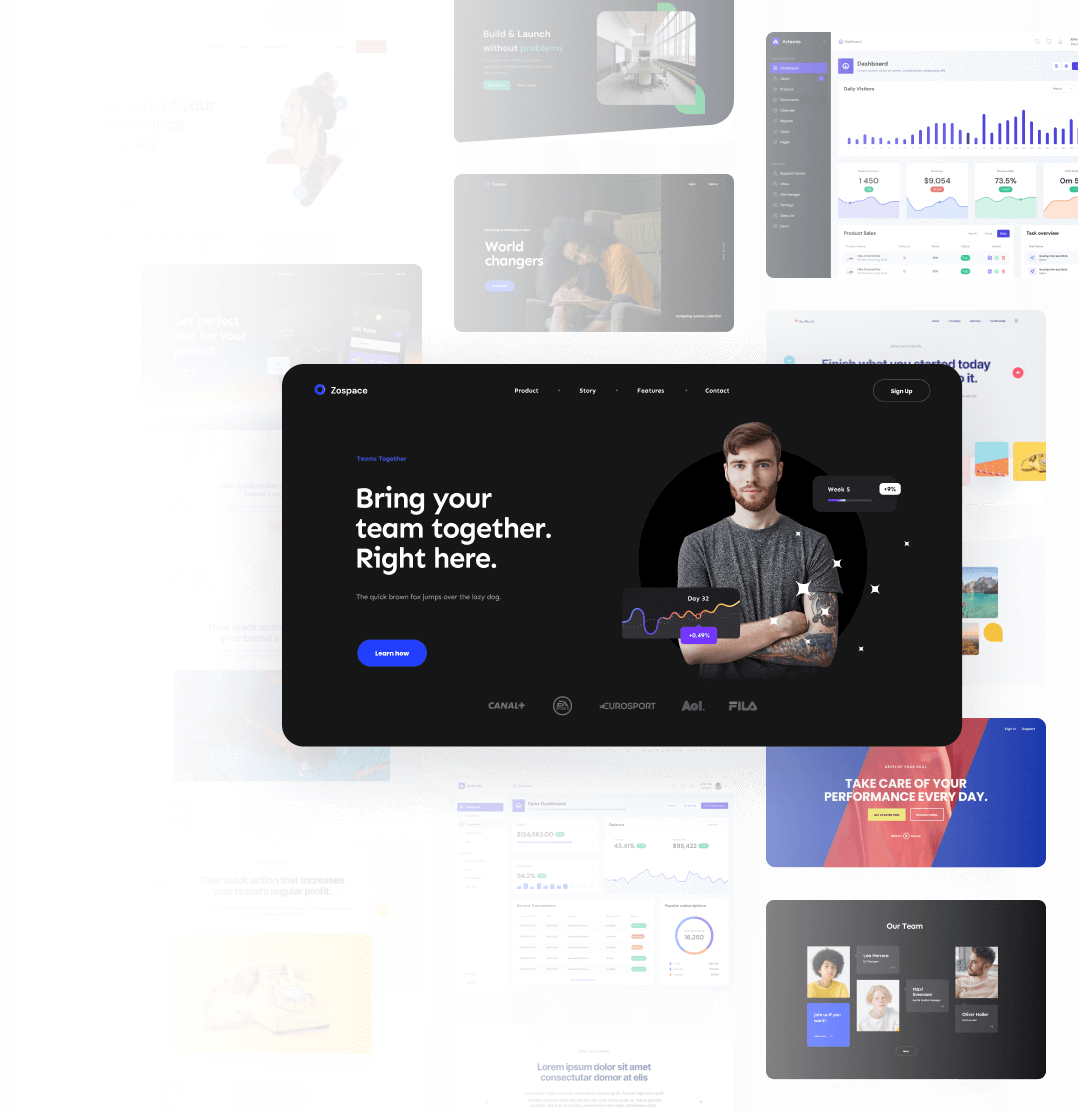
 This is a demo mode. If you have an account, please sign in.