
Confirm AI Code Replacement
Please review the code below and decide if you would like to replace the current component code with this version.

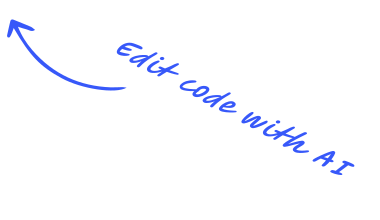
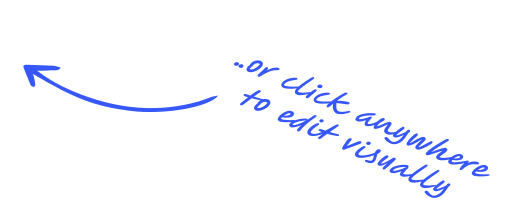
Select any element on the canvas to activate its settings menu.
Preview in new tab, AI tools and the Browser view use this page. Click another page on the canvas to switch.
Lorem ipsum dolor sit amet, consectetur adipiscing elit. Sed do eiusmod tempor incididunt labore et dolore magna. Aliqua ut enim ad minim veniam.
 compiler.
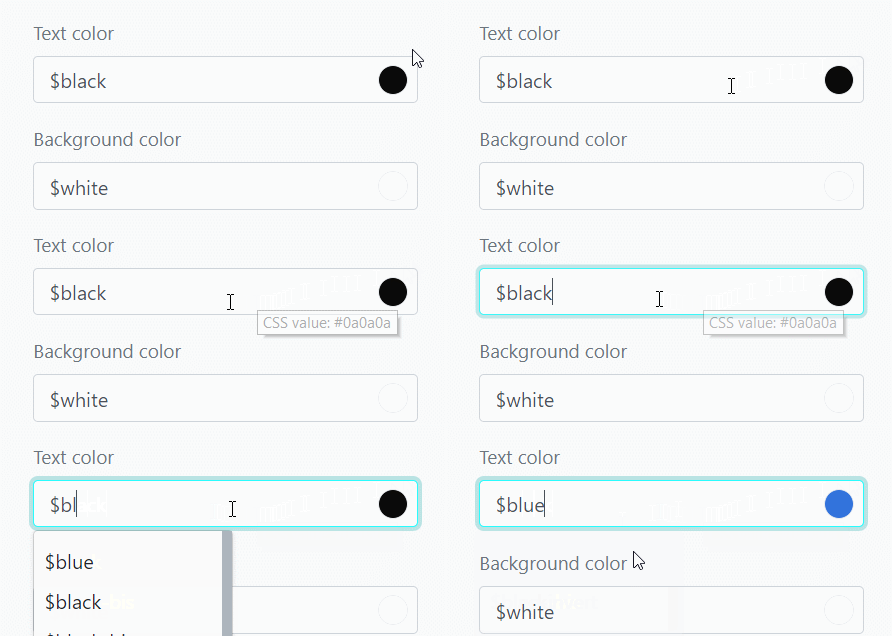
You can use CSS values or Bulma variables, just like in .scss files.
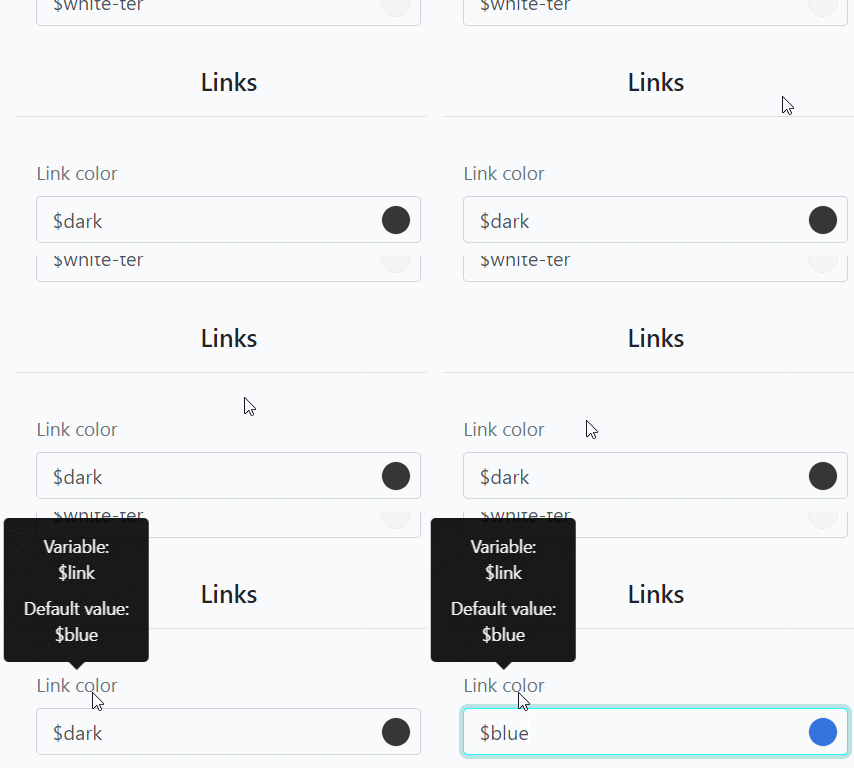
We'll show you a Bulma variable name and its default value on the label hover. Click on the label to restore input to the default value.
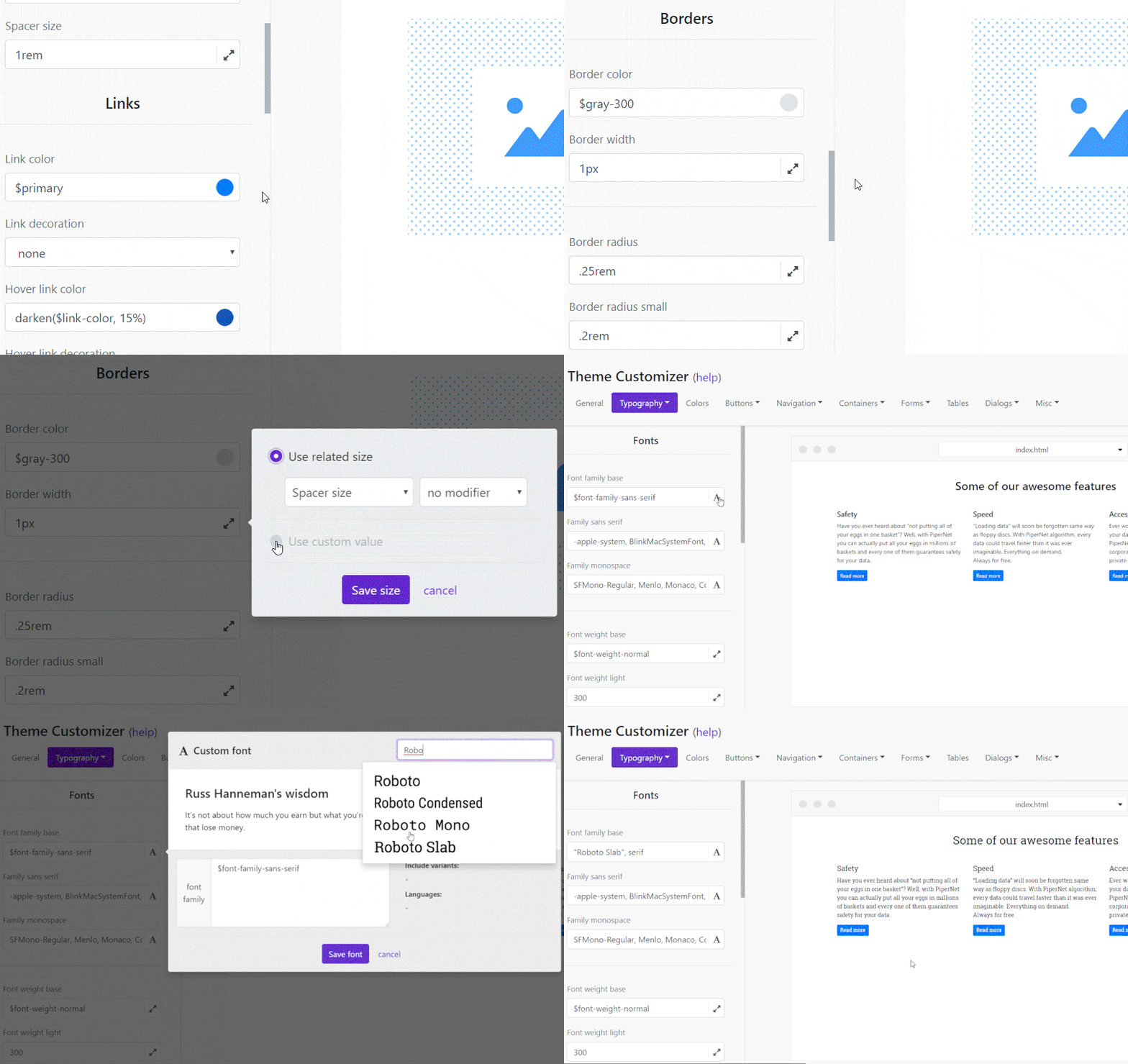
Instead of writing values by hand, you can use pickers specially prepared for colors, sizes, shadows, transitions, and fonts.
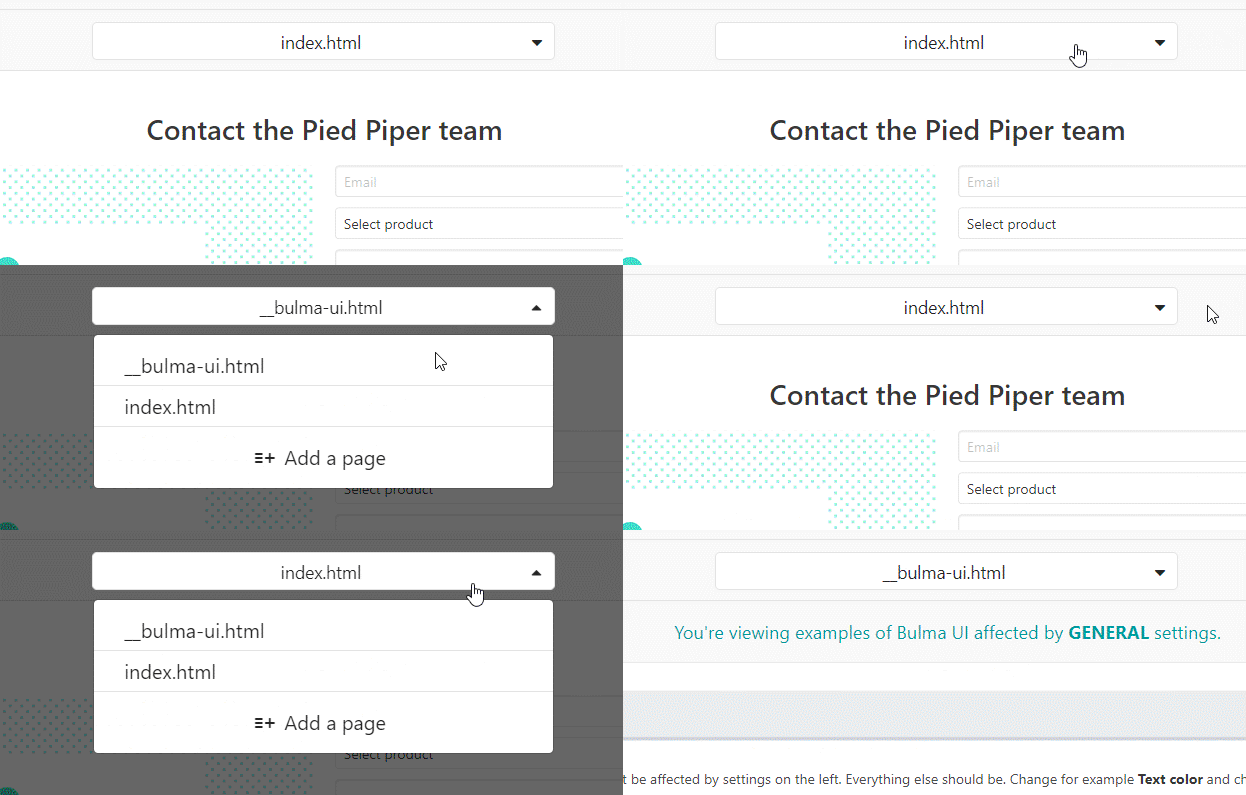
Bulma Styles menu has two preview modes. One is for your pages (e.g., index.html), and the other is for Bulma UI components of the current category.
By default, custom components are saved globally (it is the same object).
If you want to create a new object with its own content, please use save as new component.
By default, only edited code is overwritten.
If you want to create your own component for further reuse, please use save as component.
AI is sketching, styling, and stitching everything together.
Please review the code below and decide if you would like to replace the current component code with this version.
...Enter your own API key to bypass Shuffle's usage limits.
The scan is in progress.
Create your account to keep building with AI and turn this draft into a finished website.
The AI will include it in the generated component (upload logo, icons, videos, or other visual elements).
Clearly tell the AI where to insert the asset and how to position any related content (for example, "Use it as a logo").
Your uploaded file will be added directly to the generated component. After uploading, you can guide the AI on where exactly to use it, e.g. as a logo or as a section image.
Select data name, then edit data. Remember to save changes.
There is a newer version or session on the server. Please reload the editor to resolve.
Hint: In 9 cases out of 10 it is caused by opening the same project in multiple browser windows.

Try to use Shuffle Editor on higher resolution or change your device.
You can find previously uploaded files under the Project Files tab.


Use the search input
to browse the Unsplash library.
Once saved, you can return to it anytime in the Project Files tab.
Image generation typically completes within 30 seconds.
Select or upload a new SVG icon.




No icons found!

Git integration allows you to configure auto deployments with platforms like Vercel, Netlify, Firebase, and many more.
Create Account
SSH integration allows you to configure auto deployments to any hosting provider.
Create Account
Hosting integration allows you to deploy your project with a single click.
Create AccountTransform your project into a production-ready WordPress theme with Shuffle. Ready to install on your site.
Transform your project into a Shopify Online Store 2.0 theme with products, collections, cart, and customer accounts. Ready to upload to your store.




Use the left column to select a category of components. Drag them into the canvas to add them to your project.
After dropping the component on the canvas, you can turn on Drag Mode, move elements around, and add new elements.
Create as many pages as your website needs. Manage them from the dropdown menu.
You can customize the chosen framework here. It doesn't matter if the framework uses Sass, tailwind.config.js, or theme.js. We will show you the same understandable visual interface.
The right menu allows you to modify an element's CSS classes and create new ones when needed.
Shuffle allows you to download the project in HTML, JSX or TSX, and PUG formats. Use icons near the Export button to switch formats.
If you don't want to download the project on your disk, export it to the Github repository. This option allows you to configure auto-deployment with platforms like Vercel, Netlify, etc.
Your agent will download the project and all its assets.
Your agent will convert this project into a WordPress theme.
Create a design specification that coding agents can follow to build new pages in this style or apply the same look to an existing project.
Takes up to 30 seconds.This may take up to 30 seconds.
DESIGN.md
Connect the Shuffle MCP server to Claude Code and generate website designs with up to four AI models at once, right from your terminal. Every design is a Shuffle project you can edit.
Run this command in your terminal:
claude mcp add --transport http shuffle https://shuffle.dev/mcp
Start Claude Code, run /mcp, select shuffle and choose to authenticate. Your browser opens Shuffle: log in and click Allow.
Start your message with “Use Shuffle to…” or use the /mcp__shuffle__design and /mcp__shuffle__redesign commands, so Claude Code uses Shuffle instead of writing the code itself. For example:
The Shuffle MCP server works with any app that supports remote MCP servers. Use this server URL everywhere:
https://shuffle.dev/mcp
Add the server to ~/.cursor/mcp.json (all projects) or .cursor/mcp.json in your project. Then open Cursor Settings → MCP, find shuffle and click Login or Connect to sign in.
{
  "mcpServers": {
    "shuffle": {
      "url": "https://shuffle.dev/mcp"
    }
  }
}
Add the server to .vscode/mcp.json in your project, or run MCP: Add Server from the Command Palette and choose HTTP. Start the server, follow the sign-in prompt and use Copilot Chat in agent mode.
{
  "servers": {
    "shuffle": {
      "type": "http",
      "url": "https://shuffle.dev/mcp"
    }
  }
}
Open Settings → Connectors and choose Add custom connector. Name it Shuffle, paste the server URL, click Connect and sign in. In a chat, make sure the Shuffle connector is enabled in the tools menu.
https://shuffle.dev/mcp
Any app that supports remote MCP servers with OAuth can connect. Add a server with this URL and the HTTP (Streamable HTTP) transport; sign-in is discovered automatically. Apps that only support local (stdio) servers can connect through a bridge such as mcp-remote.
https://shuffle.dev/mcp
Designs use your Shuffle AI usage allowance. Read the MCP server documentation for all tools, limits and troubleshooting.
Connect the Shuffle MCP server to Codex and generate website designs with up to four AI models at once, right from your terminal. Every design is a Shuffle project you can edit.
With the Codex CLI installed, run these commands in your terminal:
codex mcp add shuffle --url https://shuffle.dev/mcp
codex mcp login shuffle
Or add this to ~/.codex/config.toml, then run codex mcp login shuffle:
[mcp_servers.shuffle]
url = "https://shuffle.dev/mcp"
codex mcp login shuffle opens Shuffle in your browser: log in and click Allow. Start a new Codex session and run /mcp to check that Shuffle is connected. The Codex CLI and IDE extension share the same configuration.
Start your message with “Use Shuffle to…” so Codex uses Shuffle instead of writing the code itself. For example:
The Shuffle MCP server works with any app that supports remote MCP servers. Use this server URL everywhere:
https://shuffle.dev/mcp
Add the server to ~/.cursor/mcp.json (all projects) or .cursor/mcp.json in your project. Then open Cursor Settings → MCP, find shuffle and click Login or Connect to sign in.
{
  "mcpServers": {
    "shuffle": {
      "url": "https://shuffle.dev/mcp"
    }
  }
}
Add the server to .vscode/mcp.json in your project, or run MCP: Add Server from the Command Palette and choose HTTP. Start the server, follow the sign-in prompt and use Copilot Chat in agent mode.
{
  "servers": {
    "shuffle": {
      "type": "http",
      "url": "https://shuffle.dev/mcp"
    }
  }
}
Open Settings → Connectors and choose Add custom connector. Name it Shuffle, paste the server URL, click Connect and sign in. In a chat, make sure the Shuffle connector is enabled in the tools menu.
https://shuffle.dev/mcp
Any app that supports remote MCP servers with OAuth can connect. Add a server with this URL and the HTTP (Streamable HTTP) transport; sign-in is discovered automatically. Apps that only support local (stdio) servers can connect through a bridge such as mcp-remote.
https://shuffle.dev/mcp
Designs use your Shuffle AI usage allowance. Read the MCP server documentation for all tools, limits and troubleshooting.
Generate and compare designs from multiple AI models.
Speed up your workflow with these keyboard shortcuts.
Your project starts with a home page. Add the rest from either view, both show the same pages.
One page at a time
Best for finishing pages in order, like home, about, then contact.
Your whole site at a glance
Best for spotting what's missing and keeping pages consistent.
Switch views any time with BrowserGrid
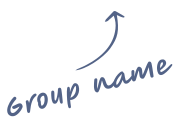
If you want to reuse the same set of classes, group them together so you can apply them all at once with a single click.
Below is an example illustrating how to use groups.

What would you like to change?

How you’ll build with a full account:
Describe your idea and compare designs from top AI models. Keep the best one.
Fine‑tune every detail visually.
Ask for changes in plain words and watch the page update.
Get clean code for the stack you already use.
 Next.js
 Astro
Astro HTML
HTML WordPress
 Laravel
Hover to take another look

 Tailwind CSS
 Bootstrap
 Bulma
Bulma
 Material-UI
Take your design beyond the editor. Download the full source code or publish directly from Shuffle.
Choose your plan in the next step.
Built in Shuffle.
Yours to take anywhere.
Experiment freely. Shuffle keeps a history of your project, so you can go back to any earlier version at any time.
Choose your plan in the next step.
Try bold ideas.
Undo anything, anytime.
More than versioning with an account.
Turn any page of your project into editable Figma layers, ready for your design team to refine and present.
Available on paid plans. Choose your plan in the next step.
Build in Shuffle.
Keep designing in Figma.
More than Figma export with a paid plan.
 This is a demo mode. If you have an account, please sign in.